Showing posts with label howto. Show all posts

Saturday, January 11, 2014

Workaround for Highlighted Text Problems in GNOME Apps when Using Custom GTK Theme

A zonColor theme user reported: 'When i select any zoncolor theme i can't read text when i selected it in evince pdf reader'.


After some investigations, I found that this is a known bug of some GNOME apps like Evince, Evolution, and maybe other too (see https://bugzilla.gnome.org/show_bug.cgi?id=682435), so it will affects other GTK themes that do not include "new standard" in GTK theme color definition.

Those apps look for "the new standard" theme_selected_bg_color, theme_selected_fg_color, etc., instead of the standard, long time used "selected_bg_color", "selected_fg_color", etc (notice the difference, later ones are without "theme_"). This causing any theme that does not use "theme_*" color definitions in its css files will have problems with those apps.

Friday, November 8, 2013

Youtube Video Thumbnail Image Hotlink

Youtube, the most popular video sharing website owned by Google, is also one of the best content resources for web publishers, bloggers, and also app developers. You can easily embed videos available on Youtube directly on your websites or apps so you users or audience could watch videos without having to go Youtube video page.


Youtube also lets you put the video thumbnail images on your page so you can show them to help users preview the videos that might be interesting for them to watch. Here is the link format if you want to get Youtube video thumbnail images.

Sunday, January 6, 2013

Set Nemo as Default File Manager in Ubuntu

Nemo is a file manager application developed by Linux Mint team. It is a fork of Nautilus, the GNOME's file manager. In the beginning, Nemo was just Nautilus 3.4 (Nautilus version which is forked to become Nemo) with different name.

With rapid development and improvement, Nemo now become a full-featured file manager with lots of features, more customizable, and looks beter (in my opinion) than its original (Nautilus).


Nemo is the default file manager in Linux Mint, to handle folder and also handle the desktop. You can also easily install Nemo in Ubuntu if you want which is just apt-get away using a PPA (read more: How to install Nemo in Ubuntu),

When you install Nemo in Ubuntu, it doesn't set itself as the default file manager, Nautilus remains as the default one. If you want to integrate Nemo into Ubuntu system (as the default folder handler), you have to do it manually.

Here I want to share simple command to set Nemo as the default file manager in Ubuntu.

Friday, October 26, 2012

Use Custom Theme in GNOME Shell 3.6 (Ubuntu 12.10)

Here's a simple solution for you who use GNOME Shell desktop environment (GNOME 3.6) to make custom themes (especially metacity/window decoration themes) work on GNOME Shell 3.6 desktop in latest Ubuntu 12.10 (Quantal Quetzal).

Some people prefer GNOME Shell desktop environment over the default Unity desktop in latest Ubuntu 12.10. The DE comes with the default Adwaita theme from GNOME Team, which is clean and beautiful theme, but still, people want the ability to use custom themes to personalize for their own desktop.

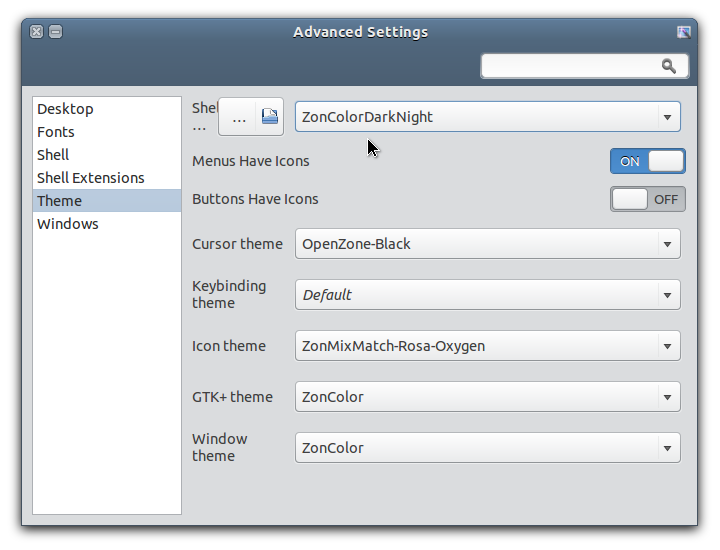
In previous version of GNOME Shell, people can choose different themes by putting their cutom themes in user folder (~/.themes) and then easily activate them via a theme changer utility app like GNOME Tweak Tool (Advanced Settings). Unfortunately, in the latest stable realease (GNOME 3.6), this ability to use custom theme is not that easy anymore, which is I think a regression. Below is a screenshot:

Screenshot: Can not change window border theme on GNOME Shell session

Like you can see on the screenshot above, I activated custom themes (zonColor) for window border/titlebar theme, GTK theme, and GNOME Shell theme. The GTK theme and GNOME Shell theme work, but not the window (metacity/mutter) theme; it still show the default theme, despite what I choose via GNOME Tweak Tool app window.

So, how to make custom themes (especially metacity) work on latest GNOME Shell 3.6?

Friday, September 21, 2012

Fix User Themes GNOME Shell Extension Installation Problem (Ubuntu)

GNOME Shell, a relatively new user interface environment for Linux desktop which was released with GNOME 3, comes with a default theme which aims to be both functional and good looking. Despite its beatiful design, many users (including me) at some point found that they just want to change the default look of their desktop with a custom theme.

In GNOME 3, there is no official utility for changing desktop theme, especially the Shell theme. You can install and use a tool like Advanced Settings (gnome-tweak-tool) to change various settings in GNOME 3 desktop including GTK theme, but to be able to change the Shell theme with a theme in user theme folder, you have to use an extension, that is User Themes extension (which is one of the most popular extension). You can install it from the official GNOME website here.

Unfortunately, up until now, the User Themes extension from the GNOME website that will be installed into your home directory, is still causing a problem, that is causing Advanced Settings (the app that we will use to change GNOME Shell theme) fail to launch when the extension is active (at least on Ubuntu 12.04 and Debian Wheezy, from my experience).


To fix the User Themes extension problem (causing Advanced Settings failed to launch), you can try the following steps.

Tuesday, September 11, 2012

Better Way to Hide File / Folder in Nautilus (Ubuntu / Linux)

As you Linux users may already know, in GNU/Linux file system, files/folder with a "dot" in front of their names will become hidden by default. So, if you want to hide a file/folder, you have to add a dot in front of its name (.MyHiddenFile for example).

But do you know that Nautilus, the default file manager app for Ubuntu OS and many other GNOME-based Linux distros, has a feature that can hide files/folders with an additional different way, without renaming the file/adding a dot in its name.

For me, this feature is very useful, especially to hide files/folders that cannot be renamed. Here is an example:


As you may notice from the screenshot above, there are system folders that used by Windows OS (yes, I have multiboot OS on my system, Windows and Ubuntu/Linux OSes) on one of my hard disk partition that I used to store data files (shared files). I hate it whenever I see those files (with ugly names) on Nautilus, but since they are system files in Windows OS, renaming them as dot files won't be effective, because they will be auto-generated whenever I go to WIndows and I will see them again when I return to my Linux box.

So, I use Nautilus' different way of hiding files as solution.

Friday, September 7, 2012

Install Nemo File Manager in Ubuntu

The upcoming changes in Nautilus 3.6 created controvery among desktop Linux users. The latest version of the file manager application from GNOME project has been completely redesigned so that it is much simpler in term of visual design, and also in its functionality.

Despite its better looking and consistency with other GNOME apps, removal of its features including compact view, tree view in sidebar, extra pane, and many other features available in its predecessor that are considered important features for many, has made users consider to find and use alternatives.

Ubuntu team has decided to stick with Nautilus 3.4 for its upcoming Ubuntu 12.10. Other Linux distro, Linux Mint team has had even more further move, by forking it, creating Nemo, a Nautilus 3.4 fork that keep its features, with some other useful addition.

Wednesday, September 5, 2012

Install Real Firefox in Debian

Mozilla Firefox is a widely used web browser in many GNU/Linux distibution, including Debian OS. But, due to the brand/name restriction, Debian use Iceweasel, a rebranded Firefox browser, as its the default web browser instead of "real" Mozilla Firefox.

Iceweasel is Firefox, only with different name and logo. It looks and performs exactly like Firefox, Firefox extensions/add-ons are 100% compatible and thus can be installed and used in Iceweasel.

But for many people, using the rebranded browser of Firefox somehow doesn't give a "real" Firefox eperience. And also, although in very rare cases, some websites reportedly can't recognize Iceweasel as Firefox, so the site can't be used smoothly on it. Another reason why some people prefer the real Firefox instead of Iceweasel, is because Iceweasel in Debian is a bit outdated, not updated to the latest Firefox (as of this writing, Iceweasel version in Debian Wheezy is Iceweasel ESR 10.0.7, while the latest Mozilla Firefox is Firefox 15.0).

For whatever reason, if you want to install the real Firefox in Debian OS, here I will show a little step-by-step tutorial/guide.


Debian doesn't provide Firefox in its official repository, so we need to install it in another way. In this method, I will show you a manual installation: how to install the real Mozilla Firefox web browser in Debian OS.

Monday, August 27, 2012

Find Out GTK+ Version in Ubuntu / Linux

GTK+ is a toolkit for creating graphical user interfaces, that is capable to be used in many platform (multi-platform). The GTK name was originally a short of "GIMP ToolKit". It is the engine for rendering graphical widgets/elements in applications. GTK+ is the default rendering engine used in GNOME applications that we can find in various GNOME-based Linux distributions including Ubuntu OS.

A GTK+ theme, such as a theme I made, requires GTK+ library to be installed before it can be used. Like an application, a GTK+ theme is designed for specific version of GTK+ libraries. For example, zonColor theme pack was designed for both GTK+ 2 and GTK+ 3, specifically GTK 2 ver. 2.20 and/or GTK 3 ver 3.4 as minimum requirements.

A GTK theme used in GNOME image viewer app (EOG) displaying GTK+ logo

So, the question is: How to find out the GTK version running in my OS?

There is no specific tool or command that can be used to answer that question, but you can try Terminal commands below, for both GTK2-based desktop (such as Ubuntu 10.04) and GTK3-based desktop (such as Ubuntu 12.04).

Monday, August 20, 2012

Install Non-Free Multimedia Codecs in Debian

Debian GNU/Linux is a free and open-source operating system, that brings only free software/applications by default.

For most users, although the applications included in official Debian iso release are capable to handle most everyday computing tasks, but sometimes they still need to use additional codecs especially to deal with certain types of file like mp3 audio, Java plugin, Adobe flash, or basic MS fonts that is included in an office document, or other proprietary formats.

Thursday, August 2, 2012

Install Latest KDE in Ubuntu / Kubuntu

KDE SC (Software Compilation) is one of the most used desktop and application platform/environment in Linux, beside GNOME which is the default platform in Ubuntu. KDE offers high quality, slick and very nice looking, and arguably the best, highly customizable workspace and applications for its users.

KDE developers announced availabily of the latest version of KDE software, which is KDE SC 4.9 that brings many improvements, bug fixes, new features, and the best updated release yet.

Kubuntu 12.04 running the latest KDE 4.9 (with some customization)

***

What's New in KDE 4.9

Sunday, July 8, 2012

Ambiance Fix: Gedit's "Highlight Current Line" (zonModAmbiance Update)

In previous post, I wrote an article about fixing Ambiance theme (Ubuntu default theme), and also created a new theme called zonModAmbiance (a modified version of Ambiance), containing some fix mainly for the GNOME Panel in Classic session in Ubuntu 12.04.

Later, I found that Ambiance theme is also has some problem with Gedit text editor. If you use Gedit with its default settings/preferences, you won't see any problem when using Ambiance them.

The problem will appear when you activate the "Display line numbers" and "Highlight current line" features in Gedit Preferences.


Like you can see in the screenshot above, the current line is not highlighted, just like other lines in the main text area. And also, the line numbers is displayed without any difference from the main text area.

FYI: This bug has been reported on Launchpad (see this page).

This won't be a big problem if you just use Gedit to open one or two text files. But if you use it a lot with many tabs opened, especially when working with long line of codes, this gives you a problem to quickly recognize the cursor position in current line from others.

So, to fix this issue, I made some other modifications to the original Ambiance theme. Here is a screenshot of the modification, displaying current line and line numbers:


O.K., without further bla bla bla, how to fix this issue? Here it is.

Saturday, June 23, 2012

How To Edit Facebook Comment

Facebook, the social networking giant, recently added a feature for its users, the ability to edit their own comment they put on any status update or Timeline.

This is surely very useful, because sometimes or often we don't feel satisfied with comment we put on a status update on Facebook, and wish we could edit it easily and put a better one. With this new feature, we can do just that.

Saturday, June 9, 2012

Change Theme Using Command Line in GNOME (Linux)

This is a list of command line to change various theme-related settings in GNOME based desktop. These include commands for GNOME 3 based desktop environments (Ubuntu Unity, GNOME 3 Shell/Classic, Cinnamon), MATE desktop, and also the old GNOME 2 desktop (are you still using it? Well, I am, occasionally :D)


In GNOME 2 (and then in MATE), all of these settings can be easily changed using build-in GUI tool called Appearance Preferences. Unfortunately in GNOME 3 we don't have such a complete tool like that. Yes, we can use tools like GNOME Tweak Tool, Ubuntu Tweak, or MyUnity, but these tools still lack ability to change some settings, one of them is color customization. Hmmm...

Not to worry, we can do juast that using these command. Of course this is not a convenient way to customize our desktop, but at least we still have a way to do that, until someone make a decent, GUI based tool.


You can run the following commands in a Terminal window, or by using Run Application utility, just press Alt+F2 on your keyboard to open it. Each command are single-line commands, meaning that you run them one at a time.

Sunday, May 20, 2012

Install NVIDIA in Debian

Debian GNU/Linux OS comes with built-in open-source graphics driver to make use of your graphics device, which decent enough to display graphical appearance on your monitor. But, this driver is not suitable or has a poor quality if you want to see more than just basic graphics, such as for displaying 3D graphics and other effects.

Recently I wrote an article about how to install the NVIDIA driver in LMDE (Linux Mint Debian Edition), which is a distro based on Debian pre-configured with some additional proprietary applications sources. Basically, installing the NVIDIA driver in Debian is not too different from doing it in LMDE, except that you have to activate some non-free repository in Debian's software sources, because unlike LMDE, it is only pre-configured with purely open-source apps repository.


Here I want to show you how to activate non-free repo and then install the NVIDIA graphics driver in Debian.

Saturday, May 19, 2012

How to Auto-Unlock Keyring in Ubuntu 12.04, 12.10

One of the benefits of using Ubuntu OS is it comes with build-in security/safety/privacy feature. One of this feature is a keyring manager application that stores and manage your password for your credentials. This feature is really useful to keep your credentials safe and no one can unlock them, except you of course, even if your Ubuntu-powered machine (laptop, netbook, etc) got stolen.

It is highly recommended that you use this feature for storing your password, if an application you use support it. For example, everytime you open Google Chrome browser that save online password for your convenience, if you choose to use auto-login when using Ubuntu desktop, it will ask you to enter your password to unlock stored password managed by Ubuntu's build-in password manager.


Although it's good for safety, some people feel that it is anoying to enter password everytime they use certain applications. If you think so, here I will show you how to disable this feature so it will be automatically unlock keyring then it will never ask for your password again.

Thursday, May 17, 2012

Install Latest WINE in Debian / Linux Mint (LMDE)

We love Linux and free/open source softwares. Unfortunately, we live in a world where most people are still using proprietary software in Windows OS, so that many applications are still only available for the Microsoft's OS. Fear not, the Linux community has a very useful application called WINE, short of Wine Is Not an Emulator, a software that can run a Windows application on Linux machine.

Most Linux distro (including Debian/Mint) have WINE in its official repository, all we have to do is running a single-line command like sudo apt-get install wine to install it. Unfortunately, at least in Debian system official repository (including Debian Squeeze (stable), Wheezy (testing), or LMDE which is based on Debian Testing, WINE package is a bit obsolate. WINE version in the repo is 1.0, while latest stable version of WINE is 1.4, let alone the beta version which currently has reached WINE 1.5. The latest version of WINE brings many features and improvements compared with previous one, supports more Windows apps/games, and also bug fixes.


According to WINE official page, we can install latest WINE on Debian system via this website. The page does not provide a repository that we can simply add it to the Debian source list, but we have to download all necessary packages of latest WINE and install them all manually.

Here I will show you how to install lates WINE in Debian.

Wednesday, May 9, 2012

Install NVIDIA in Linux Mint Debian / LMDE 201204

Linux Mint is known as one of the most popular Linux distribution aims to provide easy-to-use, user-friendly operating system for new average Linux users coming from Windows OS.

The main edition of Linux Mint is based on and compatible with Ubuntu OS, the most popular Linux distro, that takes advantages from Ubuntu world such as huge software availibility, community support and other things, and in addition, it also provides some useful features on its own that makes Linux Mint even easier for beginner.

In addition to Ubuntu-based distro, Linux Mint is also availbale in a Debian-based OS, named LMDE, short of Linux Mint Debian Edition. This edition is arguably more stable and faster than the Ubuntu-based one, but, while keeping the goal to provide an as easy as possible to use OS for newbie, Linux Mint Debian Edition lacks some convenience feature found in the main edition (Ubuntu-based).

Unlike the main edition, there is no application like "Additional Drivers" (jockey) in LMDE, which is a very useful tool for automatically detecting proprietary hardware driver such as NVIDIA video graphics card driver. So, LMDE users have to manually install the correct packages.


This article will show you how to easily install the NVIDIA video driver in LMDE 201204.

Wednesday, April 18, 2012

zonModAmbiance: Fixing Ambiance, the default Ubuntu Theme (12.04 Precise Pangolin)

In the end of this month, on April 26th to be exact, Ubuntu 12.04 LTS "Precise Pangolin" will be released by Canonical, the company behind the Ubuntu project. This is a much awaited release by the Ubuntu comunity around the globe, bringing many new features, and also most importantly is the version entitled Long Term Support (LTS) will be supported for five years for both desktop and server version of the operating system.

In this last minutes before the public final release, the developers are very busy for sure, preparing the OS to ensure it will be a perfect product for everyone to use.

I have been using Ubuntu 12.04 Precise Pangolin since its first beta release, and found it much better than any of its predecessors, be it in performance, look and feel, and also some new features.

One of the main feature in the latest Ubuntu OS is, of course, Unity, the desktop environment inspired by the sky-rocketing popularity of tablet devices. By delivering Unity, the Ubuntu team aims to provide most efficient, efective and pleasent to use user interface, mainly for new users.

But... :)
Google+ Comments Disqus Comments
Disqus Comments Google+ Comments
comments powered by Disqus