Showing posts with label command. Show all posts

Sunday, January 6, 2013

Set Nemo as Default File Manager in Ubuntu

Nemo is a file manager application developed by Linux Mint team. It is a fork of Nautilus, the GNOME's file manager. In the beginning, Nemo was just Nautilus 3.4 (Nautilus version which is forked to become Nemo) with different name.

With rapid development and improvement, Nemo now become a full-featured file manager with lots of features, more customizable, and looks beter (in my opinion) than its original (Nautilus).


Nemo is the default file manager in Linux Mint, to handle folder and also handle the desktop. You can also easily install Nemo in Ubuntu if you want which is just apt-get away using a PPA (read more: How to install Nemo in Ubuntu),

When you install Nemo in Ubuntu, it doesn't set itself as the default file manager, Nautilus remains as the default one. If you want to integrate Nemo into Ubuntu system (as the default folder handler), you have to do it manually.

Here I want to share simple command to set Nemo as the default file manager in Ubuntu.

Monday, November 5, 2012

ManToFile: Export MAN Pages to Text File

I've been busy learning some basic scripting in Bash lately. It's not for a serious purpose or something, I just want to be able to do some personal task in automated way using script, so I don't have to do repetitive steps manually everytime.

Bash shell is great tool to do the job, and it provides many useful, straight forward, built-in commands and utilities. We just have to know and learn how to use them.

Using Google and other websites, you can find many useful informations about bash scripting on the internet. It gave me answers to most of my questions in using Bash. But still, in some point or situation, I just want to know the basic, built-in command and utilities in Bash, using official manual how to use them (MAN pages). Combination of reading official MAN pages and working example use of commands gave me better understanding to create my own codes.


With my basic knowledge in Bash scripting, I made a simple, yet very useful (at least for me) script, I gave it a name: ManToFile. As you can suggest, it's a script to redirect the "man" command output to text file, so you can read the MAN page not only in a terminal window, but in a text editor application. Why did I make such silly script? Well, for me, it's more convenience and flexibel to read the text of MAN pages in a text editor window instead of in Terminal.

For those who interested, you can download here:

Friday, September 21, 2012

Fix User Themes GNOME Shell Extension Installation Problem (Ubuntu)

GNOME Shell, a relatively new user interface environment for Linux desktop which was released with GNOME 3, comes with a default theme which aims to be both functional and good looking. Despite its beatiful design, many users (including me) at some point found that they just want to change the default look of their desktop with a custom theme.

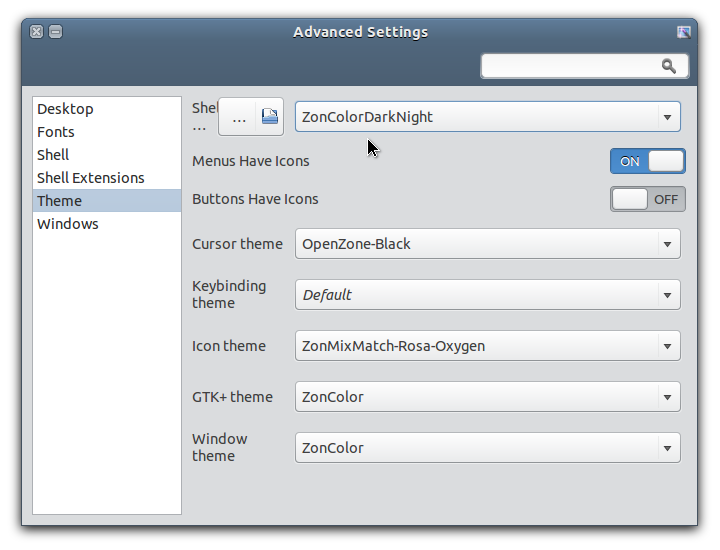
In GNOME 3, there is no official utility for changing desktop theme, especially the Shell theme. You can install and use a tool like Advanced Settings (gnome-tweak-tool) to change various settings in GNOME 3 desktop including GTK theme, but to be able to change the Shell theme with a theme in user theme folder, you have to use an extension, that is User Themes extension (which is one of the most popular extension). You can install it from the official GNOME website here.

Unfortunately, up until now, the User Themes extension from the GNOME website that will be installed into your home directory, is still causing a problem, that is causing Advanced Settings (the app that we will use to change GNOME Shell theme) fail to launch when the extension is active (at least on Ubuntu 12.04 and Debian Wheezy, from my experience).


To fix the User Themes extension problem (causing Advanced Settings failed to launch), you can try the following steps.

Saturday, June 9, 2012

Change Theme Using Command Line in GNOME (Linux)

This is a list of command line to change various theme-related settings in GNOME based desktop. These include commands for GNOME 3 based desktop environments (Ubuntu Unity, GNOME 3 Shell/Classic, Cinnamon), MATE desktop, and also the old GNOME 2 desktop (are you still using it? Well, I am, occasionally :D)


In GNOME 2 (and then in MATE), all of these settings can be easily changed using build-in GUI tool called Appearance Preferences. Unfortunately in GNOME 3 we don't have such a complete tool like that. Yes, we can use tools like GNOME Tweak Tool, Ubuntu Tweak, or MyUnity, but these tools still lack ability to change some settings, one of them is color customization. Hmmm...

Not to worry, we can do juast that using these command. Of course this is not a convenient way to customize our desktop, but at least we still have a way to do that, until someone make a decent, GUI based tool.


You can run the following commands in a Terminal window, or by using Run Application utility, just press Alt+F2 on your keyboard to open it. Each command are single-line commands, meaning that you run them one at a time.

Friday, May 4, 2012

Quit Session Button / Command for Linux

I recently installed the new, final version of Ubuntu 12.04 a.k.a Precise Pangolin, and found it a very good Ubuntu release. It is more stable, faster, and much more responsive than its previous version.

I think its shiny Unity interface is the best user interface mainly for new users. But for me, an Ubuntu user who like experimenting with operating system installation, Unity did not last very long on my PC. I'm not saying that I a Linux expert, no, I am still a noob in Linux world, but I just like to do some experiment to installed system. I like to change its interface, by installing some other desktop, thanks to availibility of desktop environments in Ubuntu/Linux. That is one of the reasons why I like Ubuntu over any other Linux distro. If a software is made available for Linux, then it is almost sure that there is an EASY installation or version for Ubuntu.

I tried installing some different desktop envioronments including its official derivates based on KDE (Kubuntu), XFCE (Xubuntu) and LXDE (Lubuntu), other desktop environment including MATE desktop, the fork of oldies but goodies GNOME 2, and also with combination including standalone session using Compiz.

Basically, there is no problem I found when using standalone Compiz session, except a little problem that I could not find an easy button or a way for logging out smoothly from the Compis session. So, I started searching some information on the internet for the solution. I didn't find many, but I did find enough working script.

So, by editing and combining command and script I found, I finally able to made a simple script that works. The screenshot below is the Quit Session window that I made, based on scripts I found on Arch Linux and Ubuntu forums.


And below is the code, a python script, I gave this tiny app a name: "Quit Now!", an agnostic Linux desktop session utility, for immediately quitting current session (Log out, Reboot and Shutdown):
Google+ Comments Disqus Comments
Disqus Comments Google+ Comments
comments powered by Disqus