Saturday, January 11, 2014

Workaround for Highlighted Text Problems in GNOME Apps when Using Custom GTK Theme

A zonColor theme user reported: 'When i select any zoncolor theme i can't read text when i selected it in evince pdf reader'.


After some investigations, I found that this is a known bug of some GNOME apps like Evince, Evolution, and maybe other too (see https://bugzilla.gnome.org/show_bug.cgi?id=682435), so it will affects other GTK themes that do not include "new standard" in GTK theme color definition.

Those apps look for "the new standard" theme_selected_bg_color, theme_selected_fg_color, etc., instead of the standard, long time used "selected_bg_color", "selected_fg_color", etc (notice the difference, later ones are without "theme_"). This causing any theme that does not use "theme_*" color definitions in its css files will have problems with those apps.

Saturday, December 7, 2013

Ubuntu in Debian Software Sources

Besides Ubuntu as an OS on my machine, I'm also using Debian GNU/Linux 7 Wheezy for months now. I'm enjoying using this latest stable version of Debian because it really is a stable version. I never encounter a single error while using it. That's the main reason why I choose to use it for some stuff I'm doing. If you are looking for a stable OS and have never use Debian before, I highly recommend to install and use it.

In Debian stable, I can get many software and applications which are complete enough (at least for me) for everyday regular tasks. Although for some applications I used to use in Ubuntu I have to find alternatives, but they are there. Software versions in Debian stable are a bit outdated compared to those in some other Linux distributions but that's not really a problem because most of the time I don't really need new features that comes with the newer version of most applications.


But today I was thinking of adding some more software and also to get some more up-to-date version of apps. I was adding software sources from Debian Testing (currently Jessie repo) by using the powerful Synaptic Package Manager app. Then I open the software sources utility to add lines to software sources list. While I was clicking tabs in Software sources window, I noticed something strange, but funny :)

Friday, November 8, 2013

Youtube Video Thumbnail Image Hotlink

Youtube, the most popular video sharing website owned by Google, is also one of the best content resources for web publishers, bloggers, and also app developers. You can easily embed videos available on Youtube directly on your websites or apps so you users or audience could watch videos without having to go Youtube video page.


Youtube also lets you put the video thumbnail images on your page so you can show them to help users preview the videos that might be interesting for them to watch. Here is the link format if you want to get Youtube video thumbnail images.

Tuesday, July 2, 2013

zonColor 1.6.5: Glossy Icons, Desklets, Modern UI, LXDE, more...

After some testing in 1.6 releases, I finally decided that zonColor is ready for a stable version of zonColor Themes Pack 1.6.5. This update is aimed to be compatible with latest version of various desktop environments (GNOME/GTK 3.8, Unity 7.0, Cinnamon 1.8, MATE 1.6, Xfce 4.10), along with additional features, theme components/templates, improvements, tweaks, and fixes.

One of differences in 1.6 compared to its previous releases 1.x, as previously noted, is in order to be compatible with GNOME/GTK 3.8, zonColor 1.6 introduces creation of actual GTK themes for color variant, rather than just make use of GTK-color-scheme feature that has been removed from GNOME/GTK 3.8.


For this release, I included some additions, one of them is new icons. Some people may like flat, square-framed icons, but me, I like icons that looks natural, 3D-shaped, shiny and glossy, and easy to be distinguished. This is a work in progress -- for now, I created icons for some apps, but for future releases I plan to create other icons too. And I also plan to include more than one icon template, so that users can have more choices of icon shape/style in creation of icon theme variant.

Monday, June 17, 2013

Razor-qt zonColor Theme

I've been playing around with a new desktop environment called Razor-qt. It is a lightweight desktop that reminds me of LXDE. But, unlike LXDE, it is based on Qt, the technology used by KDE desktop. But unlike KDE, Razor-qt is much lighter and faster. So I may call this LXDE in Qt world :)

The official website at http://razor-qt.org/ describes Razor-qt like this:
Razor-qt is an advanced, easy-to-use, and fast desktop environment based on Qt technologies. It has been tailored for users who value simplicity, speed, and an intuitive interface. Unlike most desktop environments, Razor-qt also works fine with weak machines.

After using it for sometime, I think I really like it. Fast, responsive on my weak machine, and easily configurable. I enabled zoncolor GTK theme on Razor-qt desktop session. Then I browse the default Razor-qt themes available (there's four pre-installed ones in latest release 0.5.2), which are beautiful. And then I quickly think to create a new one, to match the zoncolor theme to make them look integrated.

Based on the default theme, here is the zoncolor Razor-qt theme.

Wednesday, June 5, 2013

zonColor Update: GTK, I love you?

I have spent a lot of time lately working on next major updated version of zonColor Themes Pack. Currently, my primary focus is on new features for GTK themes of zonColor.

The big concern about zonColor GTK themes is due to the latest update version of GTK, where starting from GTK 3.8, they have stopped support for GTK color scheme (here is the announcement).

That was a disaster! Why? Because, for applying color customizations, zonColor GTK themes (versions 1.1 and earlier) rely on this feature, so that users can quickly and instantly apply color scheme to the currently active GTK theme, without having to generate a new GTK theme (unlike recoloring of icon themes and wallpaper that require to generate new ones).

Tuesday, January 15, 2013

zonColor 1.1 Update: Ubuntu Phone Wallpaper, "start-here" Icons, More

Recently, Canonical announced a big project at CES event, Ubuntu for phones, a mobile operating system aimed to provide a user experience as in Ubuntu desktop edition, on smartphones. This "Ubuntu Phone OS" created hype among geeks and enthusiasts, hoping this could be an alternative to big players like Google Android and Apple iOS among other.

One of interesting things about this Ubuntu phone OS is its visual design. It looks beautiful, simple but elegant. This design includes a gorgeous welcome screen image aka wallpaper that looks consitent with Ubuntu desktop OS visual design, with its timer clock at the center.

Inspired by the Ubuntu Phone design, some creative artists created wallpaper design for desktop, bringing the phone welcome screen design into desktop PCs.


For zonColor 1.1 update release, I decided to include "Ubuntu Phone OS"-inspired wallpapers (including template) into zonColor Themes Pack. It is a slightly modified version of "Inspire" wallpaper by Michał Prędotka (http://mivoligo.com/d/inspire-wallpaper), with some adjustment so that it can be recolored, like other wallpaper templates in zonColor.

Here is some other color variants of the wallpaper.

Sunday, January 6, 2013

Set Nemo as Default File Manager in Ubuntu

Nemo is a file manager application developed by Linux Mint team. It is a fork of Nautilus, the GNOME's file manager. In the beginning, Nemo was just Nautilus 3.4 (Nautilus version which is forked to become Nemo) with different name.

With rapid development and improvement, Nemo now become a full-featured file manager with lots of features, more customizable, and looks beter (in my opinion) than its original (Nautilus).


Nemo is the default file manager in Linux Mint, to handle folder and also handle the desktop. You can also easily install Nemo in Ubuntu if you want which is just apt-get away using a PPA (read more: How to install Nemo in Ubuntu),

When you install Nemo in Ubuntu, it doesn't set itself as the default file manager, Nautilus remains as the default one. If you want to integrate Nemo into Ubuntu system (as the default folder handler), you have to do it manually.

Here I want to share simple command to set Nemo as the default file manager in Ubuntu.

Saturday, January 5, 2013

zonColor 1.0.5 Update: Xfce Color-Scheme Support, New Xfwm Theme

Today I decided to release updated version zonColor Themes Pack 1.0.5. This time is to bring some love to Xfce desktop.

The latest release provides ability to apply GTK-color-scheme setting on Xfce session, giving exactly the same experience as applying GTK color scheme in a GNOME-based desktop session. Thanks to TiZ, a gnome-look user, for his effort and information about this possibility for Xfce session.

GTK color scheme can be applied to the latest Xfce 4.10 desktop (i.e. Xubuntu 12.10). Earlier version (e.g. Xfce 4.8 used in Xubuntu 12.04) cannot used this, though.

Tuesday, January 1, 2013

Introducing zonColor Themes Pack: Full Set Themes with Unlimited Color Variants

Started with "only" GTK-Themes, later added with icon themes, zonColor themes is now become a complete set of themes (including app) for GTK-based Linux desktop (Ubuntu, etc), comes with its special feature: you can set any color you like for the themes, as many color variant themes as you want. With included app, you can now easily apply colors for themes easily, with just few mouse-clicks.


Currently, zonColor Themes Pack includes GTK themes, icon themes, wallpapers, theme-sets (metatheme - mix-and-match of theme components) and some other theme-related utilities, including simple, straight forward little app.

Version 1.0 is the first initial release of the complete set, replacing previous version.

You can download zonColor Themes Pack 1.0 from this page.

Click here to see some screenshots.

.


PS: Still, sorry for my English :)

zonColor Themes Pack Screenshots

Here are some more screenshots of zonColor Themes Pack, in various dekstop environment/session.

Keep in mind that the colors used are just examples, using some presets included in this pack. You can create your own variants, with your very own colors.

***

zonColor example themes used in Ubuntu Unity desktop:


Monday, November 5, 2012

ManToFile: Export MAN Pages to Text File

I've been busy learning some basic scripting in Bash lately. It's not for a serious purpose or something, I just want to be able to do some personal task in automated way using script, so I don't have to do repetitive steps manually everytime.

Bash shell is great tool to do the job, and it provides many useful, straight forward, built-in commands and utilities. We just have to know and learn how to use them.

Using Google and other websites, you can find many useful informations about bash scripting on the internet. It gave me answers to most of my questions in using Bash. But still, in some point or situation, I just want to know the basic, built-in command and utilities in Bash, using official manual how to use them (MAN pages). Combination of reading official MAN pages and working example use of commands gave me better understanding to create my own codes.


With my basic knowledge in Bash scripting, I made a simple, yet very useful (at least for me) script, I gave it a name: ManToFile. As you can suggest, it's a script to redirect the "man" command output to text file, so you can read the MAN page not only in a terminal window, but in a text editor application. Why did I make such silly script? Well, for me, it's more convenience and flexibel to read the text of MAN pages in a text editor window instead of in Terminal.

For those who interested, you can download here:

Friday, October 26, 2012

Use Custom Theme in GNOME Shell 3.6 (Ubuntu 12.10)

Here's a simple solution for you who use GNOME Shell desktop environment (GNOME 3.6) to make custom themes (especially metacity/window decoration themes) work on GNOME Shell 3.6 desktop in latest Ubuntu 12.10 (Quantal Quetzal).

Some people prefer GNOME Shell desktop environment over the default Unity desktop in latest Ubuntu 12.10. The DE comes with the default Adwaita theme from GNOME Team, which is clean and beautiful theme, but still, people want the ability to use custom themes to personalize for their own desktop.

In previous version of GNOME Shell, people can choose different themes by putting their cutom themes in user folder (~/.themes) and then easily activate them via a theme changer utility app like GNOME Tweak Tool (Advanced Settings). Unfortunately, in the latest stable realease (GNOME 3.6), this ability to use custom theme is not that easy anymore, which is I think a regression. Below is a screenshot:

Screenshot: Can not change window border theme on GNOME Shell session

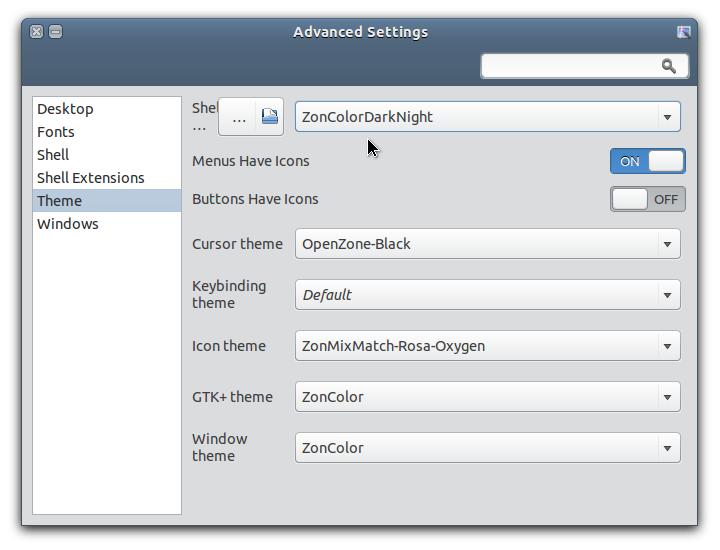
Like you can see on the screenshot above, I activated custom themes (zonColor) for window border/titlebar theme, GTK theme, and GNOME Shell theme. The GTK theme and GNOME Shell theme work, but not the window (metacity/mutter) theme; it still show the default theme, despite what I choose via GNOME Tweak Tool app window.

So, how to make custom themes (especially metacity) work on latest GNOME Shell 3.6?

Tuesday, October 2, 2012

zonColor Icon Themes: Multi-colored Icon Themes for Linux

zonColor Icon Theme Pack is a collection of beautiful, multi-colored icon themes for Linux/Ubuntu desktop, brings color choices for icons themes to better match GTK theme used by user.

UPDATE


2013-01-01
zonColor now become a complete set of themes (plus app).

Download zonColor Themes Pack here

DOWNLOAD

zoncolor-icon-theme_2012.10.02.tar.gz

Screenshots below are just examples:

zonColorSky icon theme (light blue)

zonColorTurquoise icon theme (cyan)

Friday, September 21, 2012

Fix User Themes GNOME Shell Extension Installation Problem (Ubuntu)

GNOME Shell, a relatively new user interface environment for Linux desktop which was released with GNOME 3, comes with a default theme which aims to be both functional and good looking. Despite its beatiful design, many users (including me) at some point found that they just want to change the default look of their desktop with a custom theme.

In GNOME 3, there is no official utility for changing desktop theme, especially the Shell theme. You can install and use a tool like Advanced Settings (gnome-tweak-tool) to change various settings in GNOME 3 desktop including GTK theme, but to be able to change the Shell theme with a theme in user theme folder, you have to use an extension, that is User Themes extension (which is one of the most popular extension). You can install it from the official GNOME website here.

Unfortunately, up until now, the User Themes extension from the GNOME website that will be installed into your home directory, is still causing a problem, that is causing Advanced Settings (the app that we will use to change GNOME Shell theme) fail to launch when the extension is active (at least on Ubuntu 12.04 and Debian Wheezy, from my experience).


To fix the User Themes extension problem (causing Advanced Settings failed to launch), you can try the following steps.

Tuesday, September 11, 2012

Better Way to Hide File / Folder in Nautilus (Ubuntu / Linux)

As you Linux users may already know, in GNU/Linux file system, files/folder with a "dot" in front of their names will become hidden by default. So, if you want to hide a file/folder, you have to add a dot in front of its name (.MyHiddenFile for example).

But do you know that Nautilus, the default file manager app for Ubuntu OS and many other GNOME-based Linux distros, has a feature that can hide files/folders with an additional different way, without renaming the file/adding a dot in its name.

For me, this feature is very useful, especially to hide files/folders that cannot be renamed. Here is an example:


As you may notice from the screenshot above, there are system folders that used by Windows OS (yes, I have multiboot OS on my system, Windows and Ubuntu/Linux OSes) on one of my hard disk partition that I used to store data files (shared files). I hate it whenever I see those files (with ugly names) on Nautilus, but since they are system files in Windows OS, renaming them as dot files won't be effective, because they will be auto-generated whenever I go to WIndows and I will see them again when I return to my Linux box.

So, I use Nautilus' different way of hiding files as solution.

Friday, September 7, 2012

Install Nemo File Manager in Ubuntu

The upcoming changes in Nautilus 3.6 created controvery among desktop Linux users. The latest version of the file manager application from GNOME project has been completely redesigned so that it is much simpler in term of visual design, and also in its functionality.

Despite its better looking and consistency with other GNOME apps, removal of its features including compact view, tree view in sidebar, extra pane, and many other features available in its predecessor that are considered important features for many, has made users consider to find and use alternatives.

Ubuntu team has decided to stick with Nautilus 3.4 for its upcoming Ubuntu 12.10. Other Linux distro, Linux Mint team has had even more further move, by forking it, creating Nemo, a Nautilus 3.4 fork that keep its features, with some other useful addition.

Wednesday, September 5, 2012

Install Real Firefox in Debian

Mozilla Firefox is a widely used web browser in many GNU/Linux distibution, including Debian OS. But, due to the brand/name restriction, Debian use Iceweasel, a rebranded Firefox browser, as its the default web browser instead of "real" Mozilla Firefox.

Iceweasel is Firefox, only with different name and logo. It looks and performs exactly like Firefox, Firefox extensions/add-ons are 100% compatible and thus can be installed and used in Iceweasel.

But for many people, using the rebranded browser of Firefox somehow doesn't give a "real" Firefox eperience. And also, although in very rare cases, some websites reportedly can't recognize Iceweasel as Firefox, so the site can't be used smoothly on it. Another reason why some people prefer the real Firefox instead of Iceweasel, is because Iceweasel in Debian is a bit outdated, not updated to the latest Firefox (as of this writing, Iceweasel version in Debian Wheezy is Iceweasel ESR 10.0.7, while the latest Mozilla Firefox is Firefox 15.0).

For whatever reason, if you want to install the real Firefox in Debian OS, here I will show a little step-by-step tutorial/guide.


Debian doesn't provide Firefox in its official repository, so we need to install it in another way. In this method, I will show you a manual installation: how to install the real Mozilla Firefox web browser in Debian OS.

Saturday, September 1, 2012

Format Junkie: Convert Multimedia Files Easily (Ubuntu)

Format Junkie is an easy to use, all-in-one application for converting media files to most popular formats today.

With its nice GUI, format Junkie comes with lots of options, and supports various multimedia files including audio, video, image, iso/cso formats, and also an advanced feature to join audio/video files or encode subtitles.

Monday, August 27, 2012

Find Out GTK+ Version in Ubuntu / Linux

GTK+ is a toolkit for creating graphical user interfaces, that is capable to be used in many platform (multi-platform). The GTK name was originally a short of "GIMP ToolKit". It is the engine for rendering graphical widgets/elements in applications. GTK+ is the default rendering engine used in GNOME applications that we can find in various GNOME-based Linux distributions including Ubuntu OS.

A GTK+ theme, such as a theme I made, requires GTK+ library to be installed before it can be used. Like an application, a GTK+ theme is designed for specific version of GTK+ libraries. For example, zonColor theme pack was designed for both GTK+ 2 and GTK+ 3, specifically GTK 2 ver. 2.20 and/or GTK 3 ver 3.4 as minimum requirements.

A GTK theme used in GNOME image viewer app (EOG) displaying GTK+ logo

So, the question is: How to find out the GTK version running in my OS?

There is no specific tool or command that can be used to answer that question, but you can try Terminal commands below, for both GTK2-based desktop (such as Ubuntu 10.04) and GTK3-based desktop (such as Ubuntu 12.04).
Google+ Comments Disqus Comments
Disqus Comments Google+ Comments
comments powered by Disqus